Get API key
To use zkDatabase with the SDK, you need an API Key to authenticate your requests. This guide shows you how to obtain one from the zkDatabase dashboard.
Prerequisites
- An Orochi Network account (Orochi ID). If you don't have one, you can sign up during the login process.
Step-by-Step Guide
1. Log in to the Dashboard
Navigate to zkDatabase Management tool and log in using your Orochi ID.
2. Navigate to API Keys
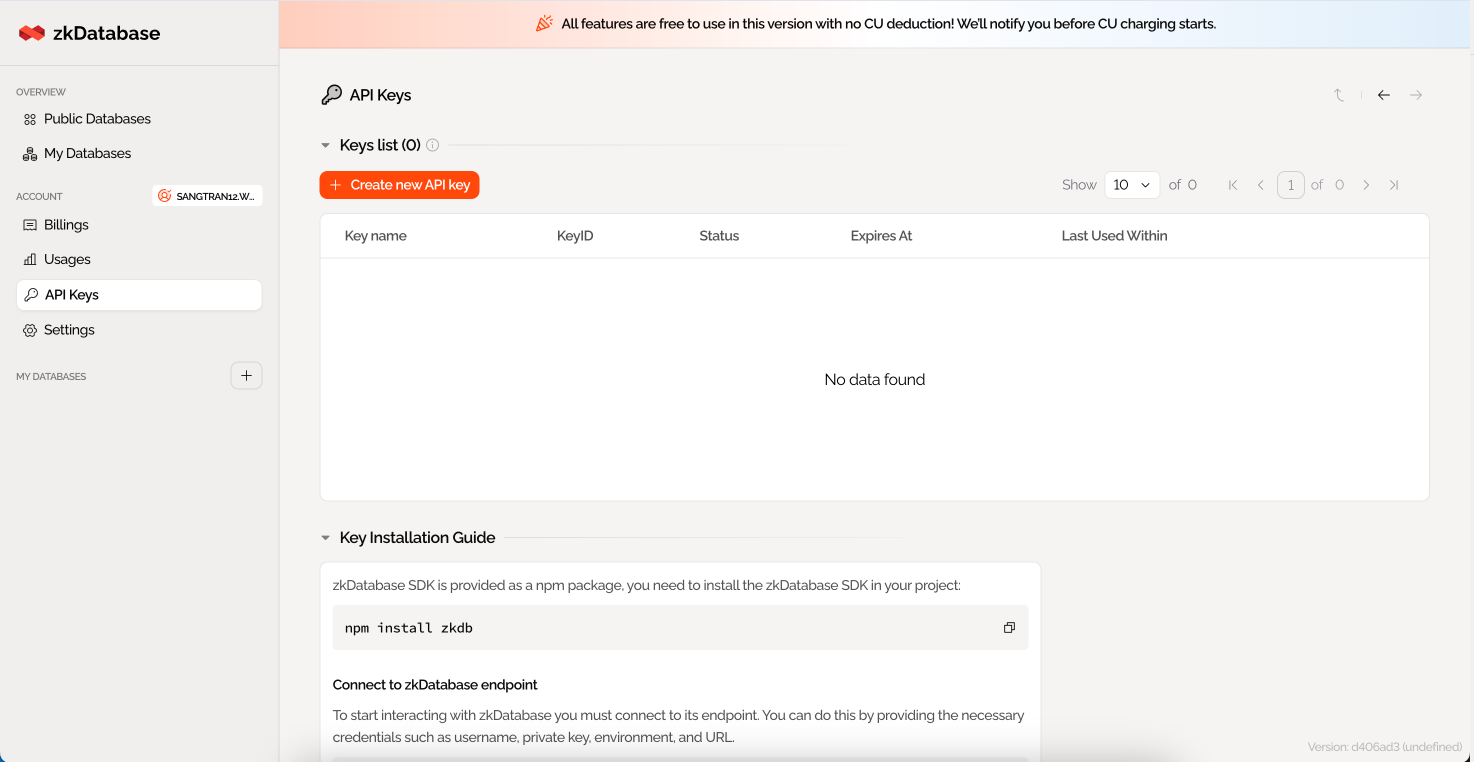
Once logged in, look at the sidebar menu on the left:
- Locate the Account section.
- Click on API Keys.
3. Create a New Key
On the API Keys page:
- Click the orange + Create new API key button.
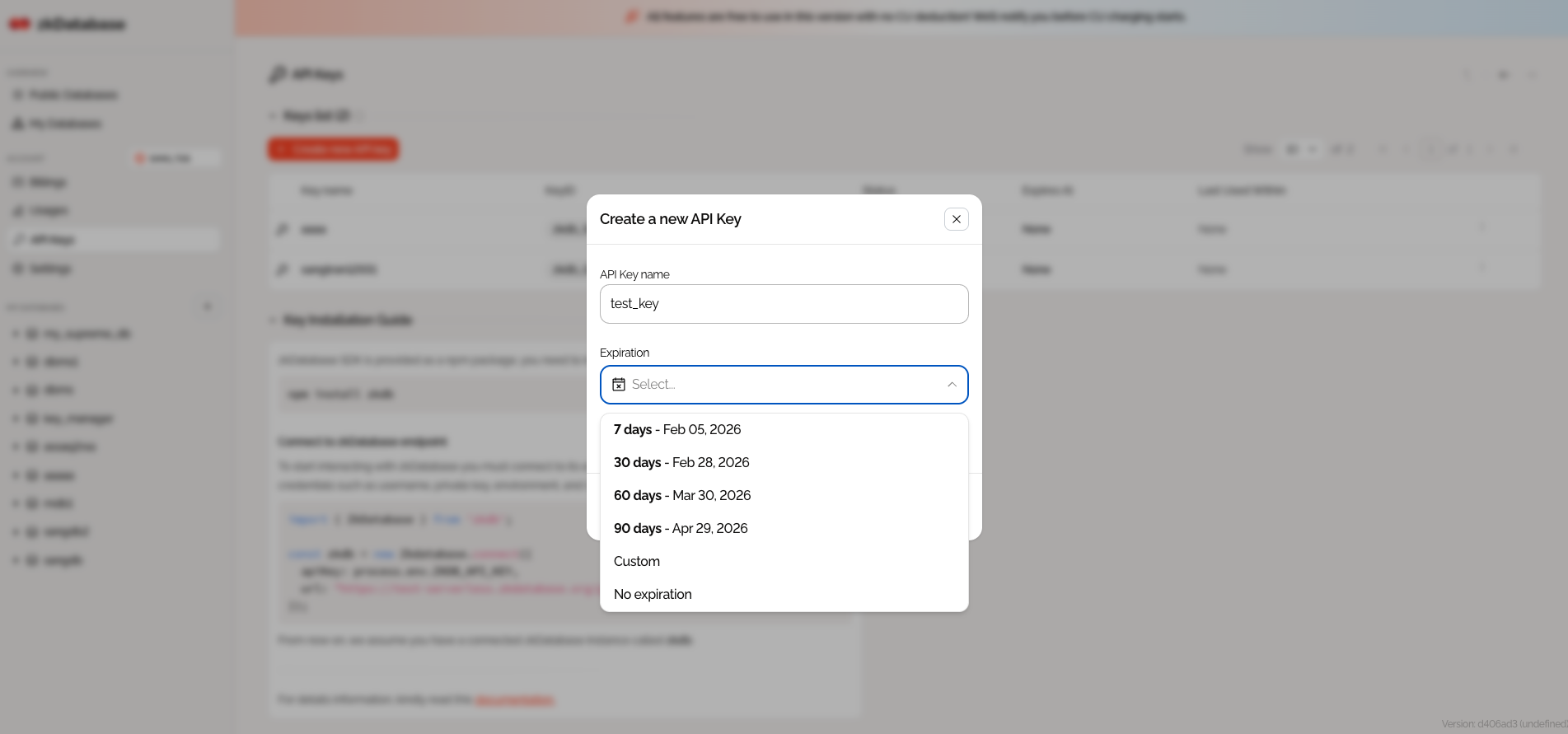
- A generic modal will appear.
- Enter a descriptive name for your key (e.g.,
MyProject_Dev). - Select an Expiration period for security (e.g., 30 days, No expiration).
- Click Create.
4. Copy Your Credentials
warning
Your Private Key and API Key are shown only once. Copy and store them securely immediately.
After creation, you will see your new credentials. You will typically need:
- Private Key: The secret key for signing requests.
- API Key: The public identifier for your application.
Using Your API Key
Once you have your credentials, you can initialize the ZkDatabase client in your application:
import { ZkDatabase } from "zkdb";

const zkdb = new ZkDatabase({
  url: "https://testnet.zkdatabase.org/graphql", // Verify endpoint
  apiKey: "YOUR_API_KEY",
  // Additional credentials if required by strict auth
});